Table of Contents
Toggle100+ Netcat Commands with Examples (2026) — Complete NC Guide
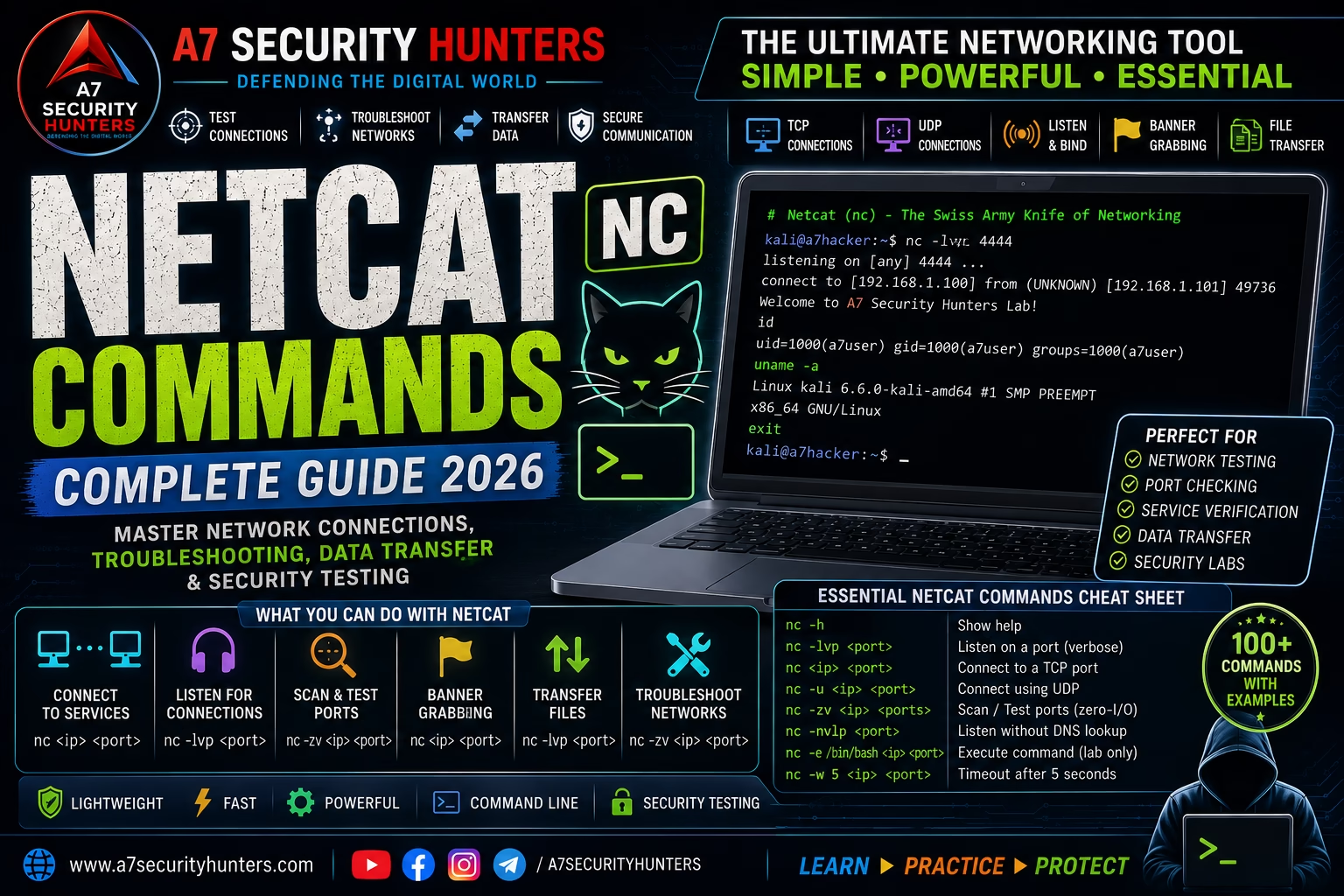
Master Netcat (nc) with practical commands for network troubleshooting, TCP/UDP connections, banner grabbing, port testing, file transfer, and authorized cybersecurity labs. Built for Google, ChatGPT, Gemini, Claude, Perplexity, and Copilot readability (AEO · GEO · LLMO · AI SEO).
100+ Commands30+ FAQs12+ TablesTCP & UDP15+ Sources⚡ 60-Second Summary
Netcat (nc) is a command-line networking utility often called the “Swiss Army knife” of networking. It can create TCP or UDP connections, listen for incoming connections, test network services, transfer files, and perform banner grabbing — all from the terminal. Available on Linux, macOS, and Windows (via Ncat or netcat variants).
- TCP Connections: Connect to any TCP port on any host
- UDP Support: Send and receive UDP packets with
-u - Listen Mode: Set up a server with
-lto receive connections - Port Testing: Check if a service is running on a specific port
- File Transfer: Send and receive files across a network
Remember one command first: nc -zv target.com 80 — quick port test to check if a web server is reachable.
Quick Answer: What Is Netcat?
Netcat (commonly called nc) is a command-line networking utility that can create TCP or UDP connections, listen for incoming connections, test network services, and transfer data between authorized systems. Security professionals and network administrators use it for troubleshooting, connectivity testing, service verification, and controlled security labs. Netcat is often called the “Swiss Army knife” of networking because of its versatility and simplicity.
Core workflow: nc target.com 80 → connect to a service → send/receive data → disconnect.
Featured Snippet Answers
Short, extractable answers designed for answer engines. Each is written to be quoted directly by Google, ChatGPT, Gemini, Claude, Perplexity, and Copilot.
What is Netcat used for?
Netcat is used for network troubleshooting, port testing, banner grabbing, file transfer, and security testing. It can connect to TCP and UDP ports, listen for incoming connections, send and receive data, and act as a simple chat or file transfer tool.
What is the nc command in Linux?
The nc command (Netcat) in Linux is a networking utility for TCP/UDP connections. It can act as a client (connecting to services) or a server (listening for connections). Common uses include port scanning, banner grabbing, and file transfer.
Is Netcat legal?
Netcat itself is legal software used by network administrators and security professionals worldwide. However, how you use it determines legality — using it on systems you own or have explicit authorization to test is legal; using it without authorization is illegal.
What is the difference between Netcat and Ncat?
Netcat (nc) is the original utility. Ncat is an improved version from Nmap that adds SSL support, IPv6, connection brokering, and other features. Most modern systems include netcat-openbsd or GNU netcat; Ncat is available with the Nmap suite.
Does Netcat work on Windows?
Yes — Netcat works on Windows via Ncat (part of Nmap) or through netcat ports like nc.exe. Ncat is the recommended version for Windows.
How do I install Netcat on Linux?
On Debian/Ubuntu: sudo apt install netcat-openbsd. On RHEL/CentOS: sudo yum install nc. On Arch: sudo pacman -S netcat. Ncat is also available with nmap.
Beginner’s Guide to Netcat
What Is Netcat?
Netcat is a simple, powerful networking utility that reads and writes data across network connections. It was originally written by Hobbit in 1995 and has since become a standard tool in Linux, Unix, and macOS distributions. It’s often called the “Swiss Army knife” of networking because:
- It works with both TCP and UDP protocols
- It can act as a client or a server
- It can send and receive data from the terminal
- It’s scriptable and works in pipelines
- It’s available on virtually every platform
TCP vs UDP — A Quick Refresher
| Property | TCP | UDP |
|---|---|---|
| Connection | Connection-oriented (handshake) | Connectionless (fire-and-forget) |
| Reliability | Guaranteed delivery, ordering | No guarantee, no ordering |
| Common services | HTTP, HTTPS, SSH, FTP, SMTP, RDP | DNS, DHCP, SNMP, NTP, TFTP, Syslog |
| Netcat flag | Default (no flag needed) | -u |
Why Network Troubleshooting Matters
Network connectivity issues are among the most common and costly IT problems. According to industry research, network downtime costs organizations an average of $5,600 per minute — and poor network reliability directly impacts revenue, productivity, and customer satisfaction. Tools like Netcat help you:
- Verify service availability without using full applications
- Test firewall rules and network ACLs
- Validate that services are configured correctly
- Transfer files between systems without FTP/SMB
- Build simple monitoring and notification scripts
Installation Guide
Linux (Debian/Ubuntu/Kali)
sudo apt update
sudo apt install netcat-openbsd -y
# Verify installation
nc -h
Alternative: GNU netcat (traditional):
sudo apt install netcat-traditional -y
Linux (RHEL/CentOS/Fedora)
sudo dnf install nc -y
# Or on older RHEL/CentOS
sudo yum install nc -y
Linux (Arch)
sudo pacman -S netcat
macOS
macOS includes Netcat by default. For Ncat (recommended):
brew install nmap
# Ncat is included with Nmap
ncat -h
Windows
Use Ncat (part of Nmap) — the recommended Netcat variant for Windows:
- Download and install Nmap from nmap.org
- Open Command Prompt as Administrator
- Navigate to the Nmap directory (usually
C:\Program Files (x86)\Nmap\) - Run:
ncat --help
Alternative: Download nc.exe from a trusted source and place it in a directory in your PATH.
Verify Installation
nc -h
# Or on systems with Ncat
ncat --version

# Test with a simple connection
nc -zv google.com 80
# Connection to google.com 80 port [tcp/http] succeeded!
Basic Netcat Commands
| Command | Purpose | Example |
|---|---|---|
nc host port | Connect to a TCP service | nc example.com 80 |
nc -l port | Listen for incoming connections | nc -l 4444 |
nc -u host port | Connect via UDP | nc -u example.com 53 |
nc -l -u port | Listen for UDP connections | nc -l -u 4444 |
nc -zv host port | Port test (zero I/O, verbose) | nc -zv example.com 80 |
nc -zv host port-range | Test multiple ports | nc -zv example.com 20-25 |
nc -v host port | Verbose mode | nc -v example.com 80 |
nc -n host port | Skip DNS resolution | nc -n 192.168.1.1 80 |
nc -w timeout host port | Set connection timeout | nc -w 5 example.com 80 |
nc -p port | Specify source port | nc -p 12345 example.com 80 |
nc -4 / nc -6 | Force IPv4 or IPv6 | nc -4 example.com 80 |
nc -e /bin/sh | Execute a program (dangerous) | nc -l -p 4444 -e /bin/sh |
-e flag (execute a program) is a massive security risk. It’s disabled in many modern Netcat variants. Only use this in isolated, authorized lab environments — never on production systems.Listening for Connections (Server Mode)
Netcat’s listen mode turns your machine into a simple server that accepts incoming connections.
# Start a listener on port 4444
nc -l 4444

# The terminal will wait for a connection
# Once connected, anything typed is sent to the client
# Keep listening after each connection (-k)
nc -l -k 4444
# Listen for UDP connections
nc -l -u 4444
# Show connection details (-v)
nc -l -v 4444
# Listening on [0.0.0.0] (family 0, port 4444)nc -l 4444 and nc 127.0.0.1 4444 in separate terminals to test Netcat locally before using it on a network.Connecting to a TCP Service
Netcat’s client mode connects to any TCP or UDP service.
nc example.com 80
GET / HTTP/1.1
Host: example.com

# Press Enter twice to send the request
nc example.com 22
# You'll see the SSH banner if the service is running
# SSH-2.0-OpenSSH_8.9p1 Ubuntu-3ubuntu0.4
nc mail.example.com 25
# 220 mail.example.com ESMTP Postfix
HELO localhost
# 250 mail.example.com
# Wait up to 5 seconds for connection
nc -w 5 example.com 80
Testing Network Ports
Port testing is one of Netcat’s most common uses. The -z flag tells Netcat to do a “zero I/O” connection test — it connects without sending any data.
nc -zv example.com 80
# Connection to example.com 80 port [tcp/http] succeeded!nc -zv example.com 80 443 25 # Connection to example.com 80 port [tcp/http] succeeded! # Connection to example.com 443 port [tcp/https] succeeded! # nc: connect to example.com port 25 (tcp) failed: Connection refused
nc -zv example.com 1-100
# Finds open ports in the range 1-100# 2 second timeout for each connection attempt nc -zv -w 2 example.com 80 443 8080
# UDP port test (-u)
nc -zvu example.com 53
# UDP port 53 often appears open because UDP doesn't replyBanner Grabbing With Netcat
Banner grabbing is the process of connecting to a service and reading its welcome banner — which often reveals the service name, version, and operating system.
printf "HEAD / HTTP/1.0\r\n\r\n" | nc example.com 80
# HTTP/1.1 200 OK
# Server: nginx/1.18.0
# ...
nc example.com 22
# SSH-2.0-OpenSSH_8.9p1 Ubuntu-3ubuntu0.4nc mail.example.com 25
# 220 mail.example.com ESMTP Postfixnc ftp.example.com 21
# 220 (vsFTPd 3.0.5)nc mysql.example.com 3306
# J (binary data including MySQL version)DNS and Network Troubleshooting
Netcat can help diagnose network and DNS issues quickly.
# Test DNS resolution (with -n to skip resolution)
nc -zv example.com 80
# Resolves example.com to its IP

# Compare with -n (no DNS resolution)
nc -zvn 93.184.216.34 80# Test connectivity to a specific IP
nc -zv 192.168.1.1 22
# If this works, the route is functional# Test if a port is allowed through the firewall nc -zv firewall.example.com 8080 # If connection succeeds, the firewall allows the port # If it fails (timeout or refused), the firewall is blocking it
# Measure connection time (approximate)
time nc -zv example.com 80
# real 0m0.023s
# user 0m0.001s
# sys  0m0.002s
nc -zv with time to get a rough measure of network latency and connection time to a service.Sending and Receiving Data
Netcat can send and receive data from the terminal or from files.
echo "Hello, world!" | nc example.com 12345
# Send a file to a listener
nc -l 4444 > received.txt
# In another terminal:
cat file.txt | nc 127.0.0.1 4444
printf "GET / HTTP/1.1\r\nHost: example.com\r\n\r\n" | nc example.com 80
nc example.com 80 < request.txt
# Sends the contents of request.txt to the service
# Terminal 1 (listener):
nc -l 4444

# Terminal 2 (client):
nc 127.0.0.1 4444

# Anything typed in either terminal appears in the other
File Transfer in an Authorized Lab
Netcat can transfer files between systems — useful in lab environments where traditional file-sharing methods aren't available.
Method 1 — Send file to listener (receiver pulls)
nc -l 4444 > received_file.txt
cat local_file.txt | nc 192.168.1.100 4444
Method 2 — Push file from sender
nc -l 4444 < local_file.txt
nc 192.168.1.100 4444 > received_file.txt
Method 3 — Transfer a directory (with tar)
nc -l 4444 | tar -xzv
tar -czv /path/to/directory | nc 192.168.1.100 4444
Method 4 — Transfer with progress (pv)
pv local_file.txt | nc 192.168.1.100 4444
Working With UDP
Netcat handles UDP connections with the -u flag.
nc -u 8.8.8.8 53
# Connect to Google DNS (UDP port 53)
nc -l -u 4444
# Listen for UDP connections on port 4444
nc -zvu 192.168.1.1 53
# UDP port tests are unreliable — open ports rarely replyecho "Hello, UDP" | nc -u 192.168.1.100 4444
IPv4 and IPv6
Netcat supports both IPv4 and IPv6.
nc -4 example.com 80
nc -6 example.com 80
nc -6zv ::1 80
# Connection to ::1 port 80 [tcp/http] succeeded!-4 to force IPv4.Netcat for Network Administration
Use Case 1 — Service Uptime Testing
Goal: Verify that critical services (SSH, HTTP, HTTPS) are responding.
nc -zv 192.168.1.10 22 80 443
# Check SSH, HTTP, and HTTPS services
Use Case 2 — Firewall Rule Validation
Goal: Confirm that firewall rules are correctly blocking or allowing traffic.
# From the network segment that should be blocked:
nc -zv 192.168.1.100 22
# Should fail if the firewall blocks SSH from this segment

# From the network segment that should have access:
nc -zv 192.168.1.100 22
# Should succeed if the firewall allows SSH from this segment
Use Case 3 — Quick Data Backup
Goal: Back up a directory without setting up NFS or SMB.
# On backup server (receiver):
nc -l 4444 > backup.tar.gz

# On source server (sender):
tar -czf - /important/data | nc backup-server 4444
Netcat for Cybersecurity Testing
Use Case 1 — Banner Grabbing for Reconnaissance
Goal: Identify service versions to check for known vulnerabilities.
nc 192.168.1.10 22
# SSH-2.0-OpenSSH_8.9p1 Ubuntu-3ubuntu0.4
# This version can be cross-referenced against CVE databases
Use Case 2 — Testing Authentication Mechanisms
Goal: Understand how services respond to different requests.
nc mail.target.com 25
# 220 mail.target.com ESMTP Postfix
HELO test
# 250 mail.target.com
AUTH LOGIN
# 334 VXNlcm5hbWU6
# The server is asking for credentials (Base64-encoded)
Use Case 3 — Testing SSL/TLS Services
Goal: Verify that SSL services are responding correctly.
# OpenSSL can be used with Netcat for SSL testing
openssl s_client -connect example.com:443
# Shows certificate chain, cipher, and TLS version
Netcat vs Other Tools
| Tool | Main Purpose | Best For |
|---|---|---|
| Netcat (nc) | TCP/UDP connectivity and troubleshooting | Quick connections, port testing, file transfer |
| Nmap | Network discovery and port scanning | Comprehensive scanning, OS detection |
| Wireshark | Packet capture and protocol analysis | Deep packet inspection, protocol debugging |
| Metasploit | Vulnerability validation | Exploitation and penetration testing |
| Burp Suite | Web application security testing | Web application testing, API testing |
| Telnet | Remote terminal (legacy) | Outdated, insecure remote access |
| SSH | Secure remote access | Encrypted remote administration |
Netcat vs Ncat (Nmap Netcat)
| Feature | Netcat (nc) | Ncat (Nmap) |
|---|---|---|
| SSL/TLS Support | No (without OpenSSL wrapper) | Yes (--ssl) |
| IPv6 Support | Yes (varies by version) | Yes |
| Connection Brokering | No | Yes (--broker) |
| Proxy Support | No | Yes (--proxy) |
| Platform Support | Unix/Linux, macOS, Windows | All platforms (part of Nmap) |
| Recommended For | Quick troubleshooting | Professional security testing |
Common Errors and Solutions
| Error | Cause | Solution |
|---|---|---|
Connection refused | No service listening on the target port | Verify the service is running; check the port number |
Connection timed out | Firewall blocking traffic; host unreachable | Check firewall rules; verify network routing; try with -w longer timeout |
Network is unreachable | No route to the target | Check network connectivity; verify IP address and subnet |
nc: invalid option -- 'z' | Your Netcat version doesn't support -z | Use Ncat (ncat -zv) or install netcat-openbsd |
Permission denied | Cannot bind to a port under 1024 | Use sudo for ports under 1024 |
Address already in use | Another process is using the port | Find and stop the process; choose a different port |
nc: command not found | Netcat not installed | Install Netcat (sudo apt install netcat-openbsd) |
Security Risks and Defensive Considerations
Risks of Using Netcat
- Unencrypted data: All traffic is plaintext
- Reverse shells:
-eflag can be abused for command execution - File transfer: No integrity checking or encryption
- Banner disclosure: Reveals version information
- Port scanning: Can trigger IDS/IPS alerts
Defensive Measures
- Firewall rules: Block unauthorized Netcat traffic
- Intrusion detection: Monitor for Netcat signatures
- Service hardening: Disable unnecessary services
- Banner obfuscation: Hide version information
- Use Ncat with SSL: Add encryption (
ncat --ssl)
Authorized Lab Examples
Lab 1 — Basic TCP Communication
Goal: Establish a simple TCP connection between two lab machines.
nc -l 4444
nc 192.168.1.10 4444
Result: Both terminals are connected. Anything typed in one appears in the other.
Lab 2 — File Transfer
Goal: Transfer a file from one lab machine to another.
nc -l 4444 > received_file.txt
cat local_file.txt | nc 192.168.1.10 4444
Result: local_file.txt is transferred and saved as received_file.txt on the receiver.
Lab 3 — Port Scanning
Goal: Identify open ports on a target lab machine.
nc -zv 192.168.1.10 20-80
# Connection to 192.168.1.10 22 port [tcp/ssh] succeeded!
# Connection to 192.168.1.10 80 port [tcp/http] succeeded!
Result: SSH (port 22) and HTTP (port 80) are open. These are services that can be further tested.
Lab 4 — Banner Grabbing
Goal: Identify service versions on open ports.
nc 192.168.1.10 22
# SSH-2.0-OpenSSH_8.9p1 Ubuntu-3ubuntu0.4

printf "HEAD / HTTP/1.0\r\n\r\n" | nc 192.168.1.10 80
# Server: Apache/2.4.56 (Ubuntu)
Result: Identified SSH and Apache versions — useful for vulnerability assessment.
Lab 5 — UDP Communication
Goal: Send and receive UDP data between lab machines.
nc -l -u 4444
echo "Hello, UDP" | nc -u 192.168.1.10 4444
Result: Machine A receives "Hello, UDP" and displays it.
Netcat Cheat Sheet
| Use Case | Command |
|---|---|
| Connect to a service | nc host port |
| Listen for connections | nc -l port |
| Test if a port is open | nc -zv host port |
| Test a range of ports | nc -zv host 1-100 |
| UDP connection | nc -u host port |
| UDP listener | nc -l -u port |
| Verbose mode | nc -v host port |
| Disable DNS | nc -n host port |
| Set timeout | nc -w seconds host port |
| Send a file | cat file \| nc host port |
| Receive a file | nc -l port > file |
| Send a message | echo "text" \| nc host port |
| Force IPv4 | nc -4 host port |
| Force IPv6 | nc -6 host port |
| Set source port | nc -p port host destination |
| Keep listening | nc -l -k port |
Frequently Asked Questions (30+ Answers)
What is Netcat?
Netcat (nc) is a command-line networking utility that can create TCP or UDP connections, listen for incoming connections, test network services, and transfer data between authorized systems. It's often called the "Swiss Army knife" of networking.
Is Netcat legal?
Netcat itself is legal software. Using it on systems you own or have explicit authorization to test is legal; using it without authorization is illegal.
What is the nc command in Linux?
The nc command is Netcat — a networking utility for TCP/UDP connections, port testing, banner grabbing, and file transfer.
What is the difference between Netcat and Ncat?
Netcat (nc) is the original utility. Ncat is an improved version from Nmap that adds SSL support, IPv6, connection brokering, and more features.
Does Netcat work on Windows?
Yes — via Ncat (part of Nmap) or through netcat ports like nc.exe. Ncat is the recommended version for Windows.
How do I install Netcat on Linux?
On Debian/Ubuntu: sudo apt install netcat-openbsd. On RHEL/CentOS: sudo yum install nc. On Arch: sudo pacman -S netcat.
What does the -z flag do in Netcat?
-z does a "zero I/O" connection test — it connects to a port without sending any data. Used with -v to test if a port is open.
What does -l do in Netcat?
-l puts Netcat in listen mode, making it a server that waits for incoming connections.
What does -u do in Netcat?
-u tells Netcat to use UDP instead of TCP.
How do I test if a port is open with Netcat?
Use nc -zv host port. Example: nc -zv example.com 80 tests if HTTP is open.
How do I transfer a file with Netcat?
On receiver: nc -l port > file. On sender: cat file \| nc host port.
How do I use Netcat for banner grabbing?
Connect directly: nc host port. The banner will display when the connection is established. For HTTP, send a HEAD request: printf "HEAD / HTTP/1.0\r\n\r\n" \| nc host 80.
What is the Netcat timeout option?
-w seconds sets a connection timeout. Example: nc -w 5 example.com 80 waits 5 seconds before giving up.
What does -v do in Netcat?
-v enables verbose mode, showing more detailed information about the connection and any errors.
What is the Netcat -e flag?
-e executes a program when a connection is established. This is a massive security risk and is disabled in many Netcat variants. Only use in isolated labs.
Can Netcat do SSL/TLS?
Standard Netcat cannot do SSL/TLS. Use Ncat (part of Nmap) with the --ssl flag for encrypted connections.
What is the difference between Netcat and Nmap?
Netcat is for quick connectivity testing and simple data transfer. Nmap is for comprehensive network discovery, port scanning, and OS detection.
How do I stop a Netcat listener?
Press Ctrl+C to terminate the listener. For persistent listeners, you'll need to kill the process with pkill nc or kill.
Can Netcat scan all ports?
Yes, but slowly: nc -zv host 1-65535. For comprehensive scanning, use Nmap instead.
What is a reverse shell with Netcat?
A reverse shell uses -e to execute a shell and connect back to the attacker's machine. This is a serious security risk and only used in authorized penetration testing.
How do I use Netcat with IPv6?
Use -6 to force IPv6: nc -6 example.com 80. Or -4 to force IPv4.
Is Netcat installed by default on Kali Linux?
Yes — Kali Linux includes Netcat (netcat-openbsd) by default.
How do I send data to a UDP port with Netcat?
Use -u: echo "data" \| nc -u host port.
What is the difference between TCP and UDP in Netcat?
TCP is connection-oriented and reliable. UDP is connectionless and doesn't guarantee delivery. Use -u for UDP; no flag for TCP.
How do I use Netcat in a script?
Use -w for timeouts and -z for port testing. Redirect output and check exit codes ($?).
What is the difference between netcat and netcat-openbsd?
netcat-openbsd is the OpenBSD version of Netcat, which is the default on many Linux distributions. It has better IPv6 support and more options than the traditional GNU version.
How do I check if Netcat is installed?
Run nc -h or which nc. If Netcat is installed, you'll see the help message or the path.
Can Netcat transfer binary files?
Yes — Netcat transfers raw binary data. Use the same file transfer methods (cat/redirect) for binary files.
What is the Netcat source port option?
-p port sets the source port for the connection. Example: nc -p 12345 example.com 80 uses port 12345 as the source.
How do I use Netcat for a chat?
One system runs nc -l port. The other runs nc host port. Whatever is typed appears on both screens.
References & Authoritative Sources
Official documentation for Ncat, the improved Netcat from Nmap.
Complete reference for Netcat commands and options.
Comprehensive guide to Ncat features and usage.
Official port number assignments for network services.
Industry data on network-based attacks and security trends.
Attack patterns and techniques including network reconnaissance.
Complementary tool for comprehensive network scanning and discovery.
Protocol analyzer for deep packet inspection and troubleshooting.
Authoritative list of vulnerabilities exploited in the wild.